
Access configuration:
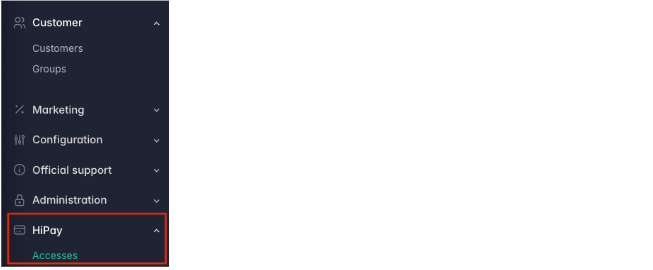
After installing the plugin, a new menu is available in Sylius : HiPay > Accesses
A grid is available and showcases your HiPay accesses currently configured:
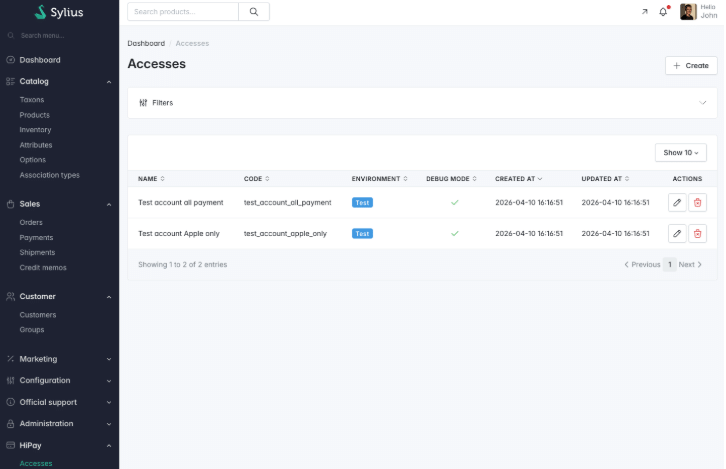
You can add a new access by clicking on the “+ Create” button on the top right corner:
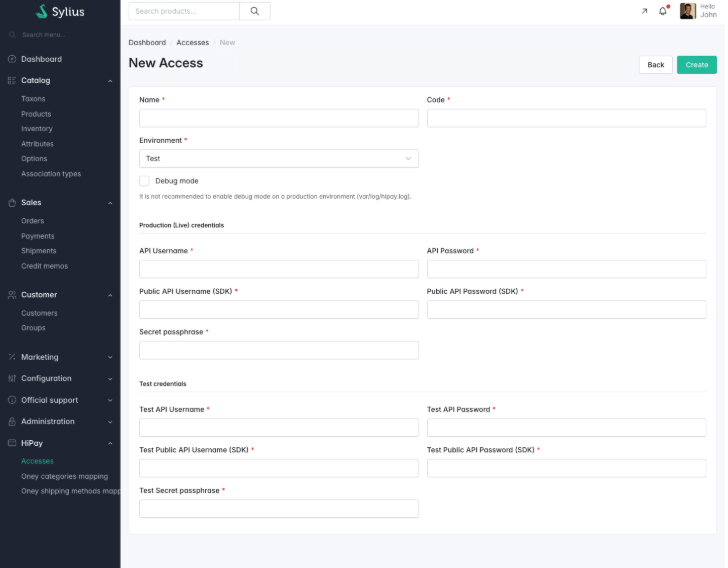
- Name: Name of your access
- Code: Internal Sylius code for the access
- Environnement:
- Possible values:
- Test / Production
- Will define the
- Test: Use to test your integration with HiPay test APIs and test credentials. Do not use this mode in your production environment.
- Production: Use production to manage real transactions on your Production environment
- This setting will determine which credentials and which HiPay API will be used
- Possible values:
- Debug Mode:
- When enabled, a log file will be created inside the var/log/hipay.log directory and will log every request
- By default, customer data and sensible data are hidden inside the log file
- This setting is for debugging or developing purpose only, it is highly recommended to disable this setting when using Production mode
- Production and test Credentials:
- API Username:
- Username used for payment API calls
- Can be found in your HiPay console
- API Password:
- Password used for payment API calls
- Can be found in your HiPay console
- Public API Username (SDK):
- Username used for HiPay SDK in frontend
- Can be found in your HiPay console
- Public API Password (SDK):
- Password used for HiPay SDK in frontend
- Can be found in your HiPay console
- Secret passphrase:
- Secret Passphrase used to validate the authenticity of HiPay notifications
- Can be found in your HiPay console
- You need to use the has algorithm SHA256 for your passphrase
- If in doubt about your credentials, please contact HiPay support
- API Username:
Payment methods settings:
Add HiPay payment method in Sylius:
To add HiPay payment method to Sylius, go to “Configuration > Payment methods”:
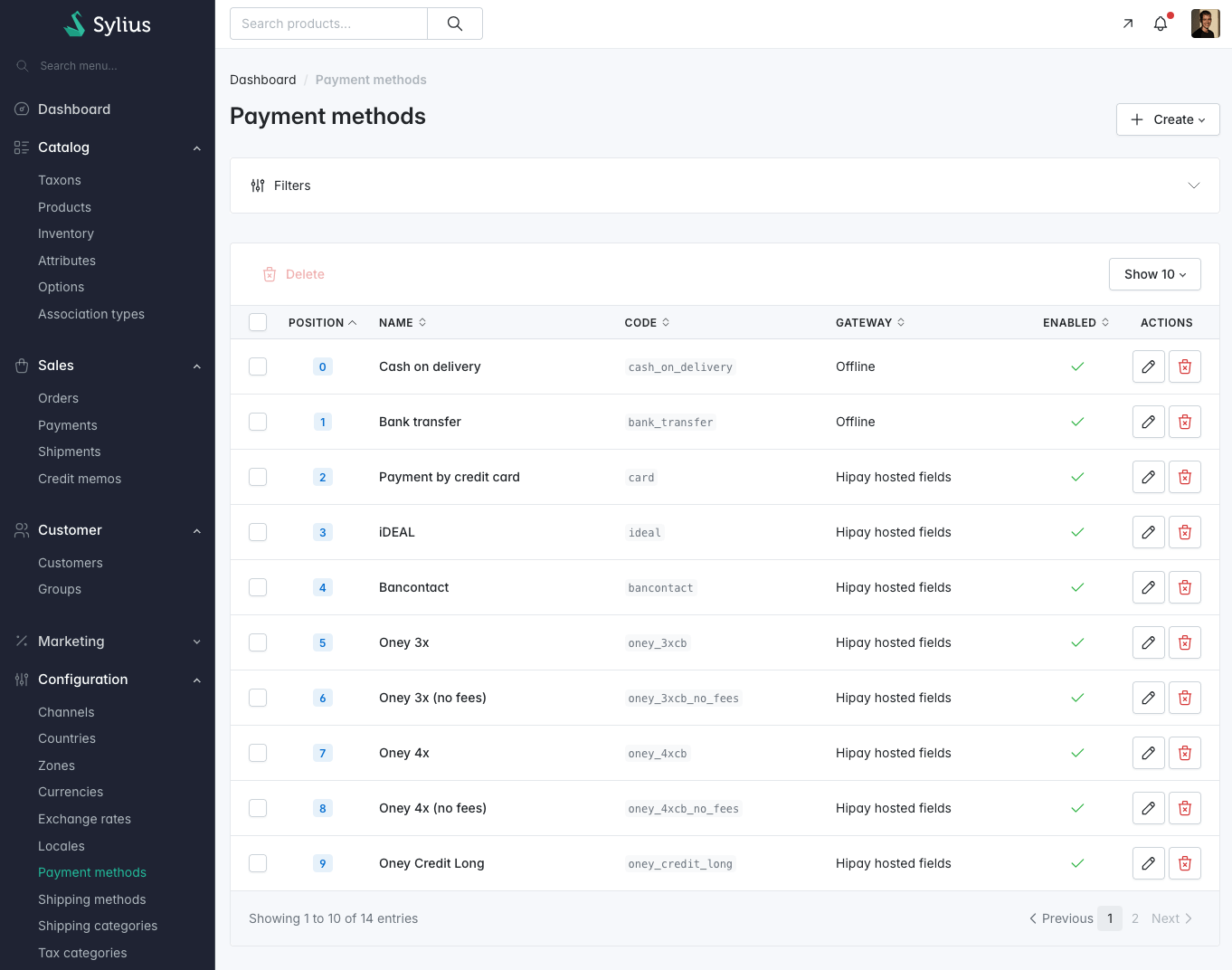
Then, click on the “+ Create” button on the top right and select either “HiPay Hosted Field” or “HiPay Hosted Page” type:
Hosted Fields
The current Sylius plugin for HiPay implements the Hosted fields logic from HiPay SDK:
- Documentation: Hosted Fields – Developer | HiPay
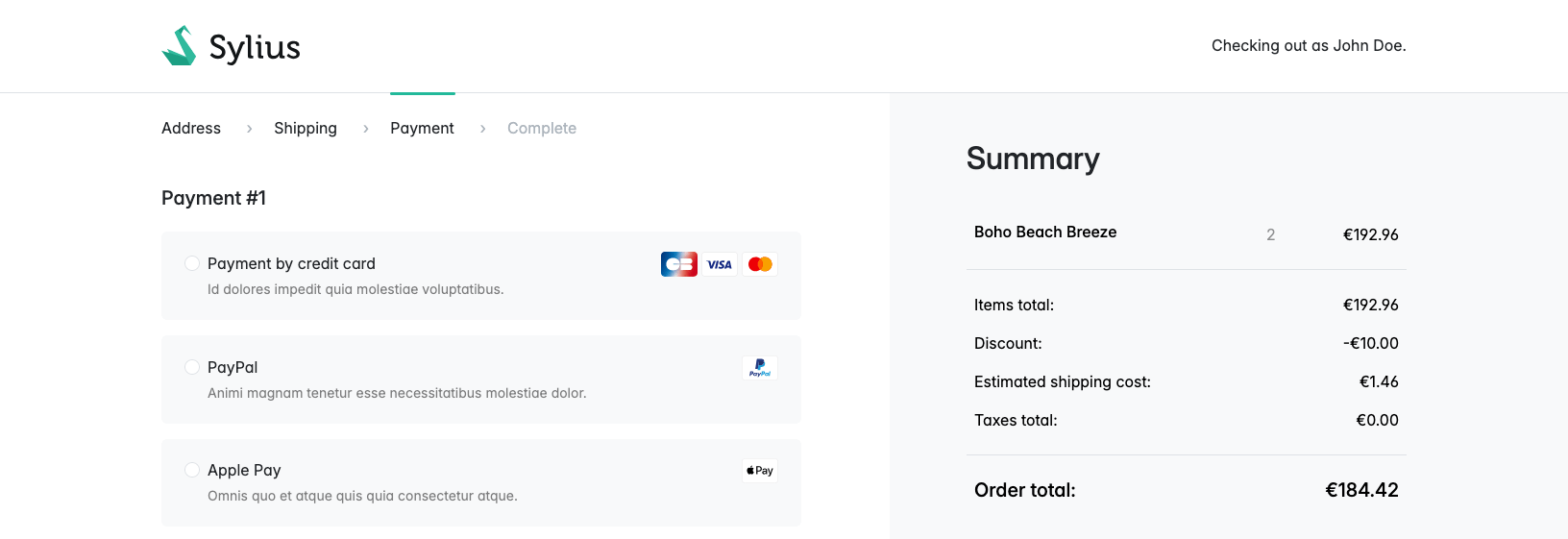
- This option allows merchant to display the payment methods one by one directly inside Sylius checkout payment step
Hosted Page
The current Sylius plugin for HiPay implements the Hosted page logic from HiPay SDK:
- Documentation: Hosted Page Integration – Developer | HiPay
- This option allows merchant to display all the payment methods inside an external payment page after validating the order in Sylius
- In the checkout page of Sylius, a single option is displayed showing all the payment methods logos available in the hosted page
You can customize several settings specific to the HiPay Hosted Page :
- Page validity (seconds): Will manage the validity time of the Hosted Page
- Theme code: Theme code from HiPay console with to replace the default design of the Hosted Page with your custom style
- Display cancel button: Will display a cancel button inside the Hosted Page
- Enable payment method: You can enable or disable individually each payment method in the Hosted Page
Common settings for payment methods
Sylius native settings:
- Code: Internal Sylius payment method code
- Position: Manages the payment method order display in the checkout page on the frontend
- Enabled / Disabled: Manages the payment method activation at a global level
- Channel: Allows you to enable or disable the payment method depending on the Sylius channel
- Name: Name of the payment method
- Description / Instructions: Payment method information displayed on the frontend
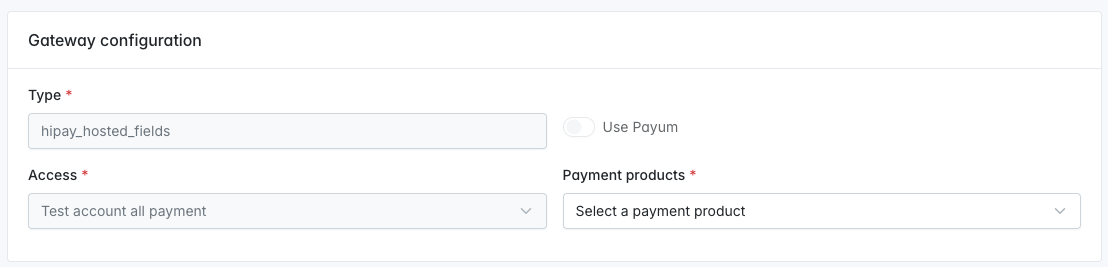
Gateway configuration:
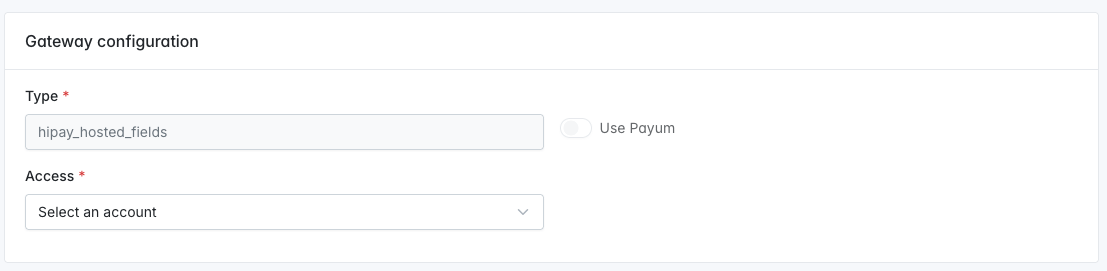
- Type: hipay_hosted_fields (automatic)
- Access:
- First, choose the HiPay access to apply to this payment method
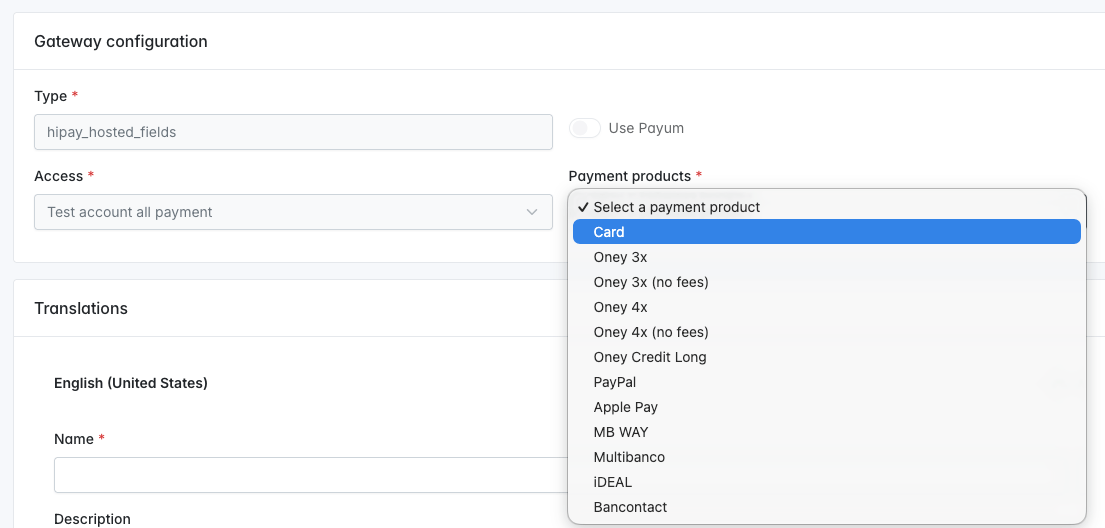
Once you have chosen the HiPay credential access, you can select the payment method available on your account:
- Payment products:
- Options :
- All the available payment methods in the plugin with a filter on the enabled payment method from your HiPay account
- Select the payment method you want to create
- If a method is greyed, it is not available in your HiPay account:
- Please contact HiPay support to enable more payment methods
- Options :
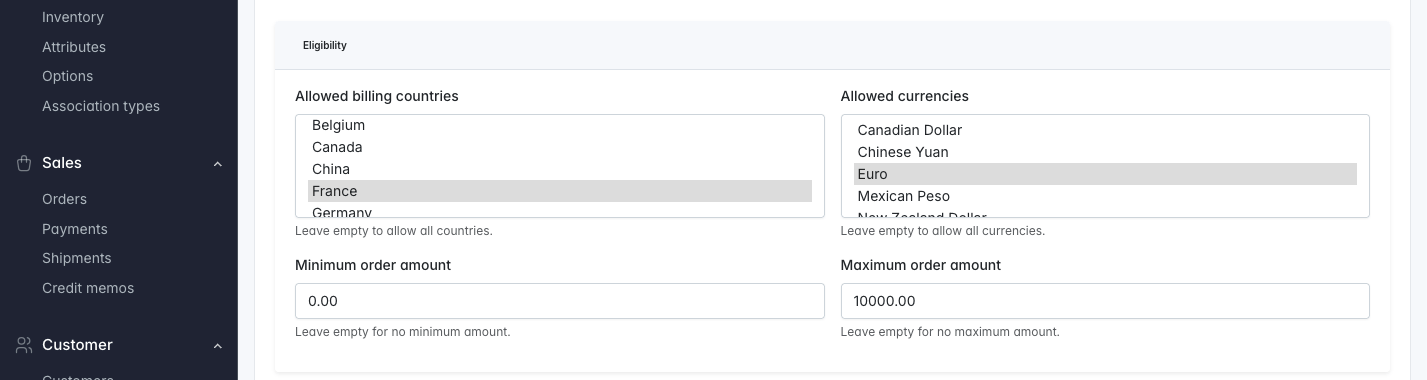
Payment method eligibility
For each payment method, you can configure its availability depending on multiple criteria:
- Allowed billing countries:
- The list is restricted to the available countries for each payment method, specifically
- Allowed currencies:
- The list is restricted to the available currencies for each payment method, specifically
- Minimum order amount:
- The payment method will only be available for orders with a total exceeding the minimum amount
- Set to 0 or empty for no restriction
- The payment method will only be available for orders with a total exceeding the minimum amount
- Maximum order amount:
- The payment method will only be available for orders with a total of less than the maximum amount
- Set to 0 or empty for no restriction
- The payment method will only be available for orders with a total of less than the maximum amount
Card payment and One Click
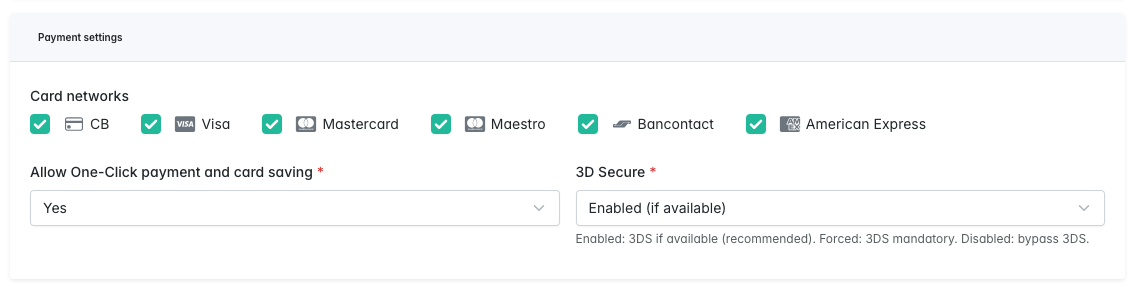
Payment settings :
- Card networks: Choose the card networks to enable for Card payments
- Allow One-Click payment and card saving: Set to Yes to enable save card functionality and to enable One Click payments
- 3D Secure:
- Options :
- Enabled (if available): Default value for 3D Secure Challenge
- Forced (mandatory): Will always ask for 3D Secure Challenge
- Disabled: Will not ask for 3D Secure Challenge
- Options :
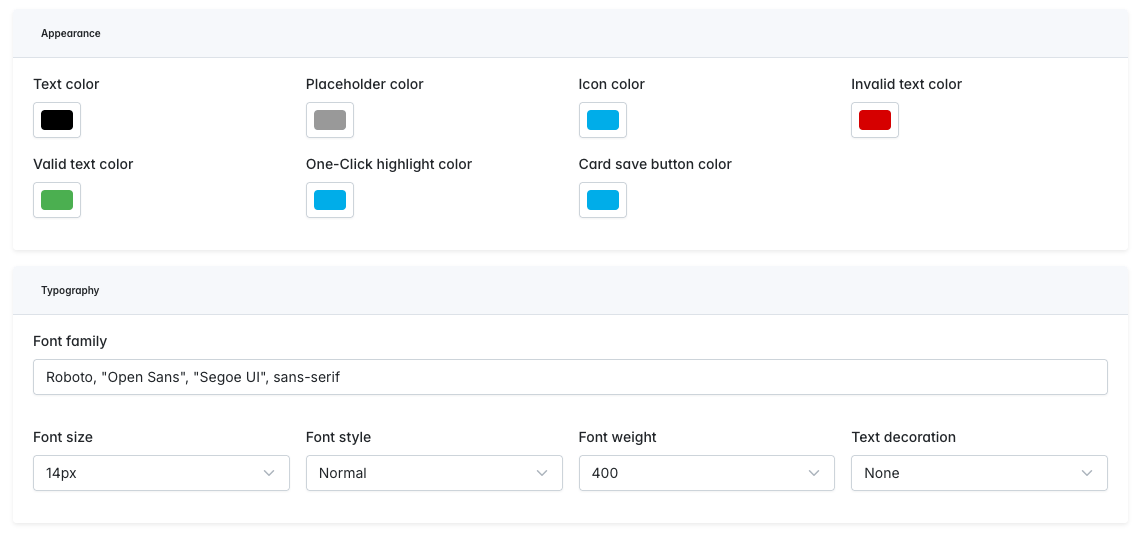
Style and design:
- You can customize from Sylius most of the options available in HiPay SDK for the Card payment form:
- SDK Styling reference: JS SDK – Developer | HiPay
At this time, the plugin is only managing direct capture for Card payments.
Capture mode
You can configure the capture mode for the card payment method in the settings:
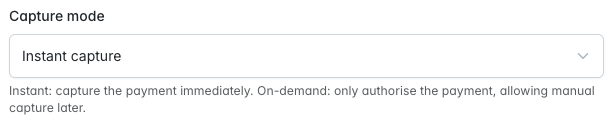
- Capture mode :
- Instant capture :
- Will capture the payment immediately and automatically after authorization
- On-demand :
- Will only authorise the payment, allowing the capture to be triggered manually later
- Instant capture :
If you choose to capture “on-demand”, there are several ways to trigger the capture :
- Manually use the capture button from the order page in the back-office :
- Capture from HiPay console:
- Or use a custom development following the technical guide to capture from the plugin:
The capture mode setting is available for both Hosted Fields and Hosted Page modes.
Paypal
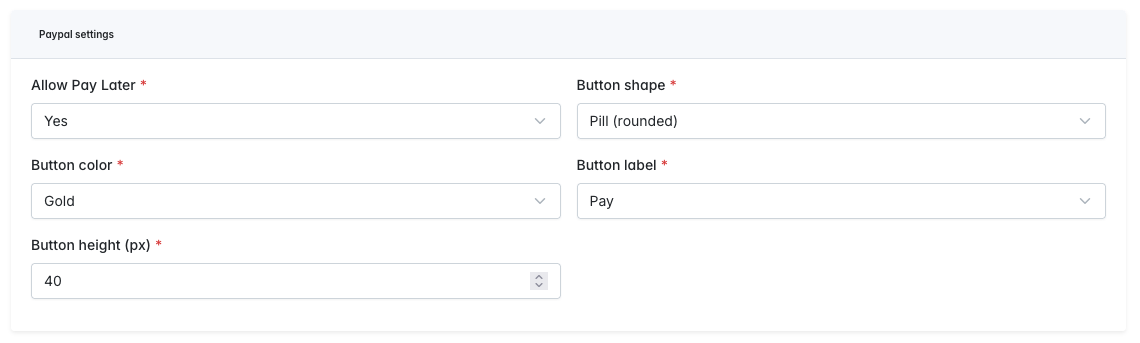
Payment settings :
- Allow Pay Later: Display the buy later button and functionality for Paypal
- Button shape: Manage button shape for Paypal (Round or rectangle)
- Button color: Manage button color for Paypal
- Button label: Manage button label for Paypal
- Button height (px): Manage button height for Paypal
Apple Pay
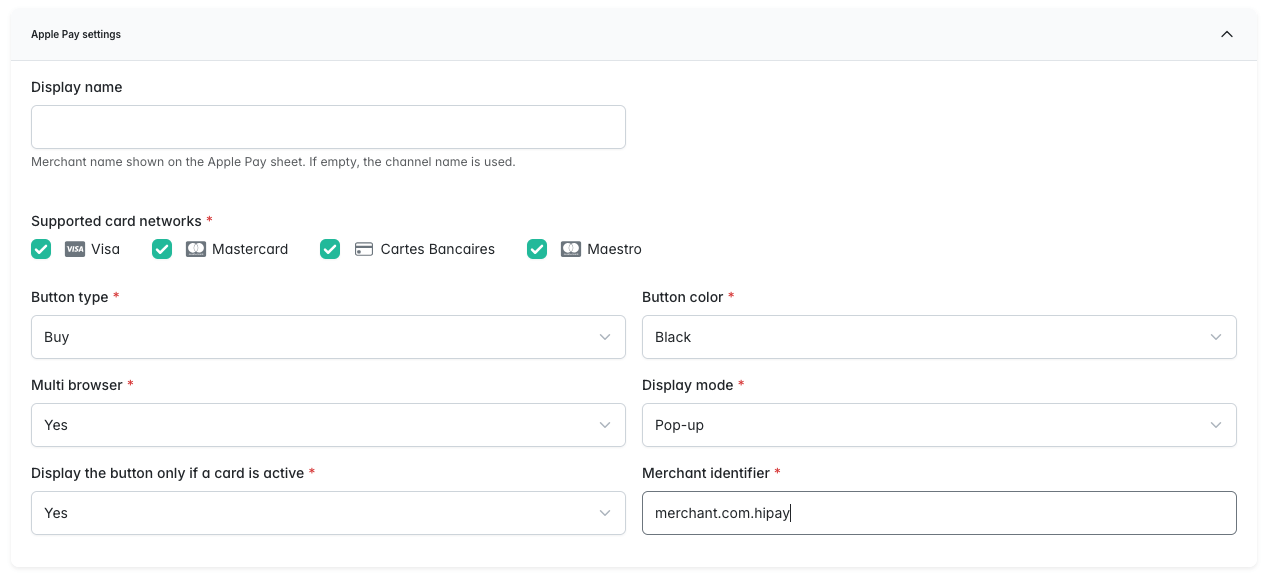
Payment settings :
- Display name:
- Store name displayed in Apple Pay pop-up
- If empty, the current channel name will be used (Configuration > Channels > Current channel > Name)
- Supported card networks: Choose the card networks to enable for Apple Pay payments
- Button type: Manage button type for Apple Pay
- Button color: Manage button color for Apple Pay
- Multi-browser: Allows Apple Pay to be used on other browsers than Safari by scanning a QR Code
- Display mode: Pop-up or Modal
- Will change the display mode of the QR code for Apple Pay outside Safari browser
- Display the button only if a card is active: Will display the Apple Pay button only if a card is active in the wallet
- Merchant identifier: Apple Pay merchant identifier needed to access the active cards for the option “Display the button only if a card is active”
Multibanco
Payment settings :
- Reference expiration limit: Transaction expiration time (1 hour, 3 hours, 6 hours, 12 hours, same day, 1 day, 3 days, 30 days, 90 days)

The payment reference for Multibanco will be displayed at the end of the order process inside the success page of Sylius :
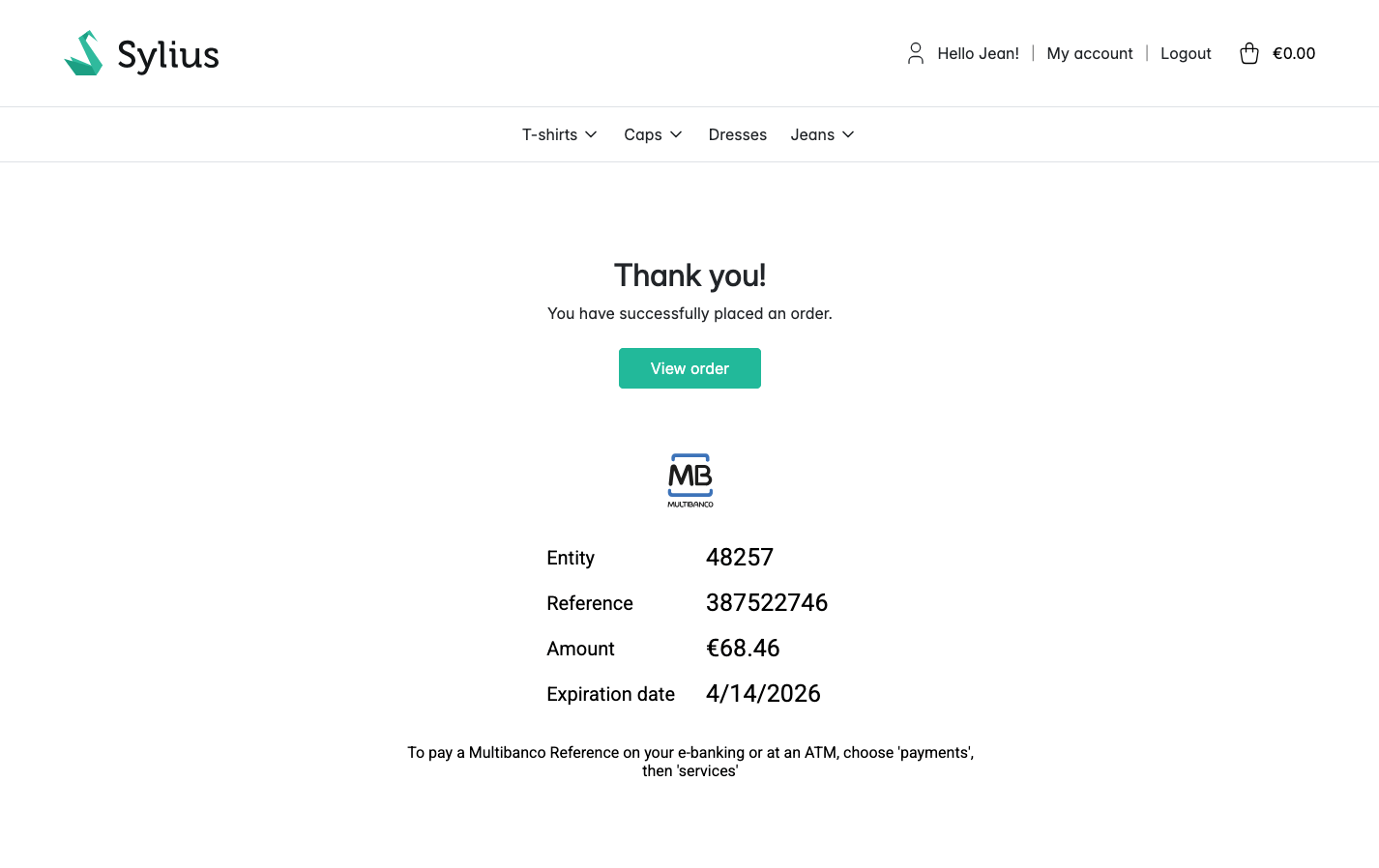
In addition, a specific email will be sent to the buyer with the same information after the transaction is created.
MBWay
No specific configurations.
iDeal
No specific configurations.
Bancontact
No specific configurations.
Bancomat
No specific configurations.
Bizum
No specific configurations.
Alma 3x and 4x
Fixed minimum and maximum amounts for Alma:
The minimum and maximum amounts for Alma are automatically fetched from HiPay APIs depending on your agreement with Alma. You cannot edit those values in the plugin.
Otherwise, no specific configurations.
Przelewy 24
No specific configurations.
Waiting page for mobile payments:
When using a payment method that need confirmation from a mobile to validate the payment, a waiting page is displayed before the success page in Sylius:
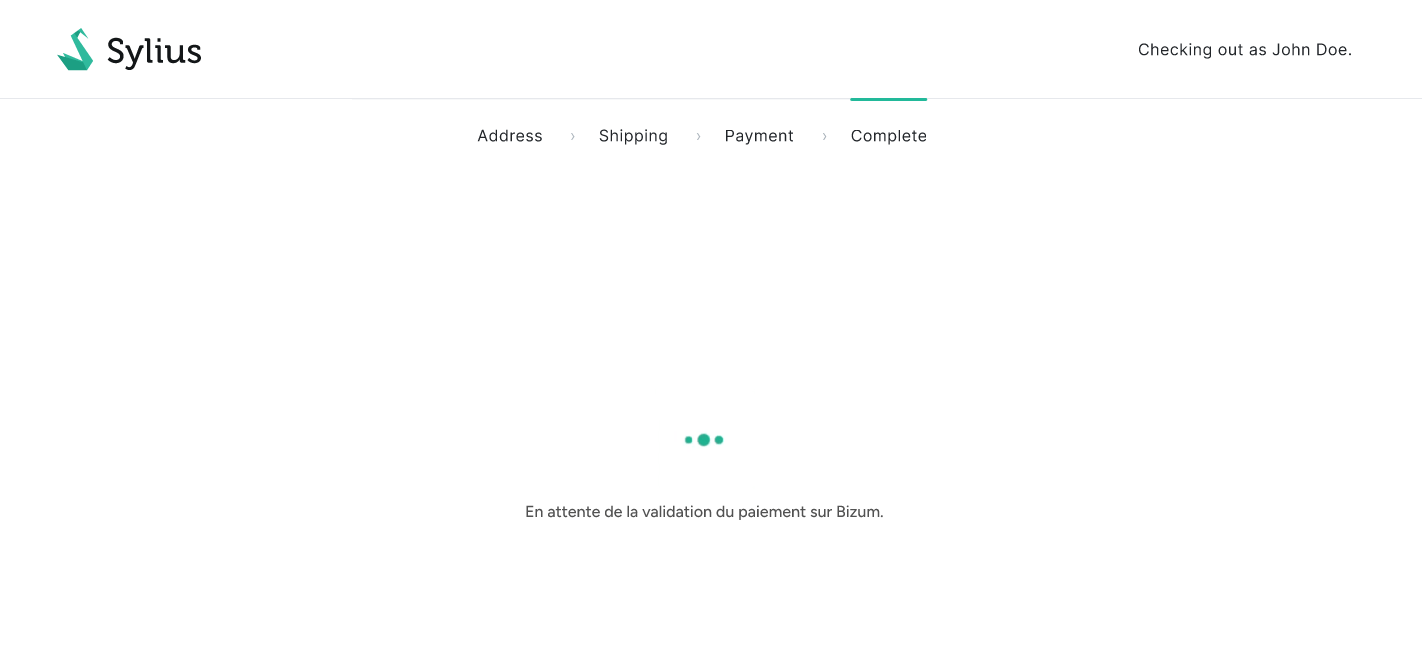
The payment methods that will display the waiting page are:
- MBWay
- Bizum
- Bancomat
The waiting page will check periodically the status of the Sylius order to check if the payment has been accepted from the mobile. When using one of these payment methods, the authorization notifications from HiPay will be consumed by Sylius synchronously in order to update the waiting page live. If the payment status is not updated in Sylius, the waiting page expires after 30 minutes.
The waiting page is displayed on both Hosted Fields and Hosted Page modes.
Notifications:
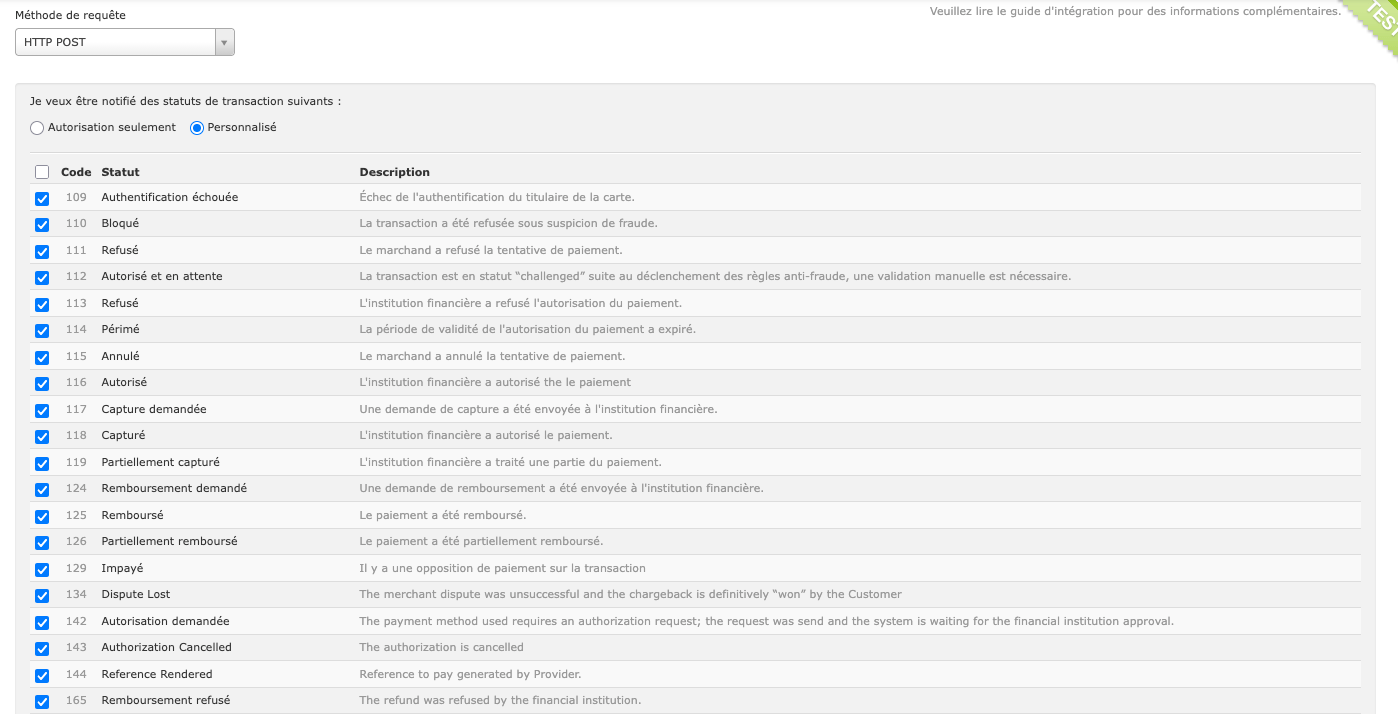
The plugin relies on server-to-server notifications from HiPay in order to handle order management and payment progress: Server-to-server notifications – Developer | HiPay
This process is handled by the “payment/hipay/notify” webhook inside the plugin. Make sure to enable all the notifications from your HiPay console and allow IP addresses if necessary:
Anti-fraud (Sentinel):
Depending on the rules defined inside your HiPay console, transactions can be flagged as “Challenged”.
When this happens, the order and transaction will be placed in a pending state while it waits for a manual confirmation from the store owner inside their HiPay console:
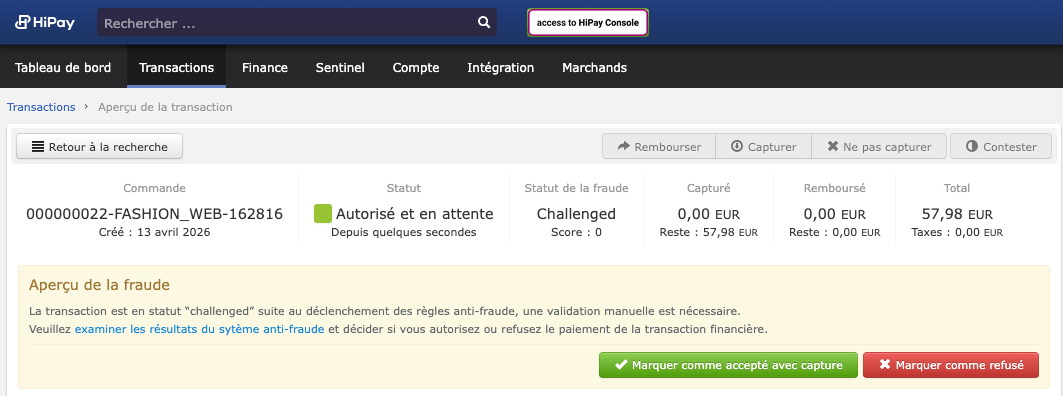
In addition, an email is sent to the store owner to inform them that a transaction is challenged. The email address used for the notification is the order channel contact email in ‘Configuration > Channels > Order Channel > Contact email’.
Accepting a transaction in the HiPay console will unlock the payment and capture the transaction in Sylius.
Refunds:
Sylius Refund plugin:
As a prerequisite to generate a refund from Sylius, please install the official Sylius Refund Plugin: https://docs.sylius.com/refund-plugin
Generate a refund from Sylius:
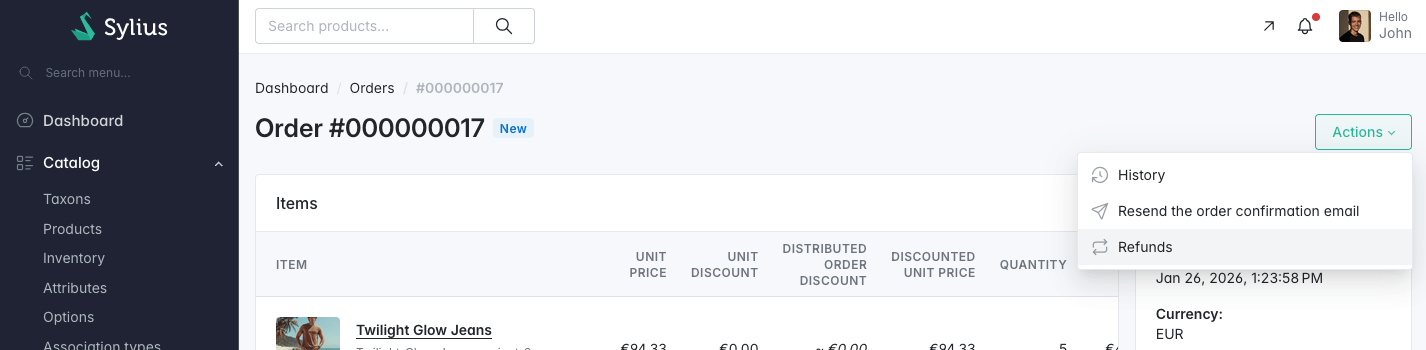
To refund a HiPay transaction from Sylius, create a new refund with the Sylius refund plugin by clicking on the “Refunds” action:
Choose the products and the amount you wish to refund and select the original payment method:
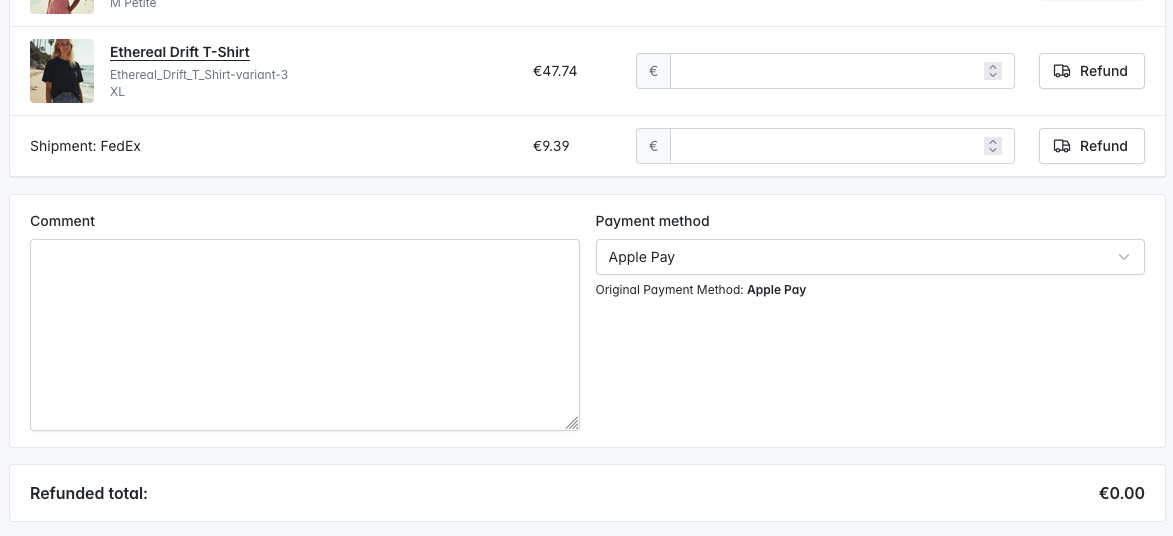
A refund request will be sent to HiPay, and the payment will be updated with a refund notification following the refund request.
Generate a refund from HiPay:
You can also generate a refund directly from HiPay console to send a refund notification to Sylius. The payment object will be updated accordingly, and the refund will be applied to the corresponding Sylius order.
Oney:
Oney payment method settings:
Oney 3x, Oney 3x (no fees), Oney 4x, Oney 4x (no fees) settings:
No specific configurations.
Oney Credit Long settings:
- Promotion code: Merchant promotion code provided by Oney when subscribing to Credit Long option

Oney mappings:
In order to provide all the necessary information to Oney payment requests, mappings have to be done between Sylius taxons and shipping methods with Oney categories and shipping definitions.
To access the mapping, go to HiPay menu and go to the shipping method or category mapping pages:
Use the “Create +” button on the top right corner of each page to add a new mapping for your store.
In the checkout, if a product category from the customer cart is not mapped or the shipping method chosen is not mapped, an error message will be displayed in the Oney payment method, and the customer will not be able to choose this payment method. Make sure to map every shipping method available and each level 1 category in order to ensure the possibility of using Oney in every scenario possible for your store.