
The Sylius connector is currently on a supervised rollout phase. Please contact your Technical Account Manager if you are interested in.
1. Access configuration
After installing the plugin, a new menu is available in Sylius : HiPay > Accesses
A grid is available and showcases your HiPay accesses currently configured:
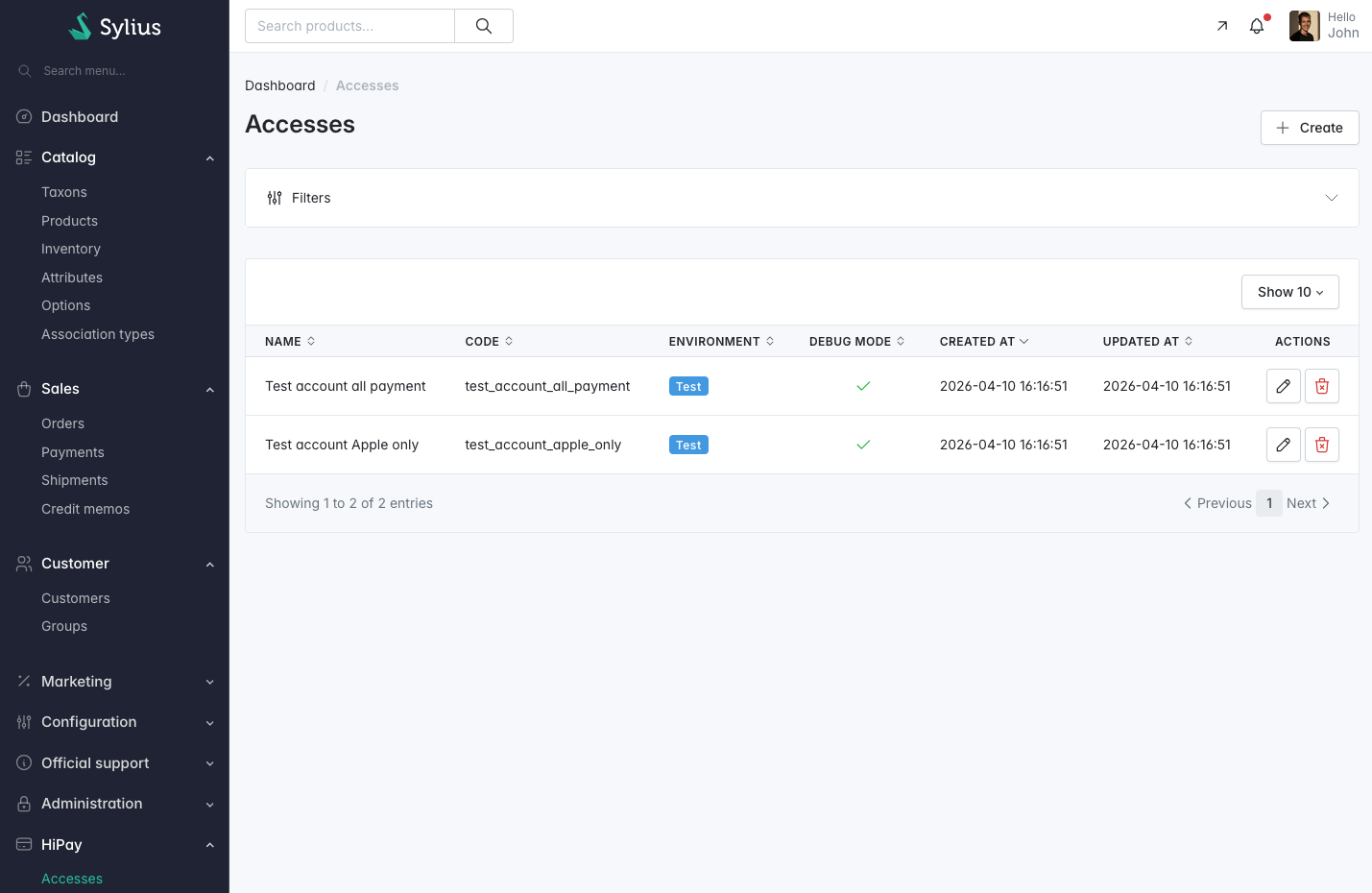
You can add a new access by clicking on the “+ Create” button on the top right corner:
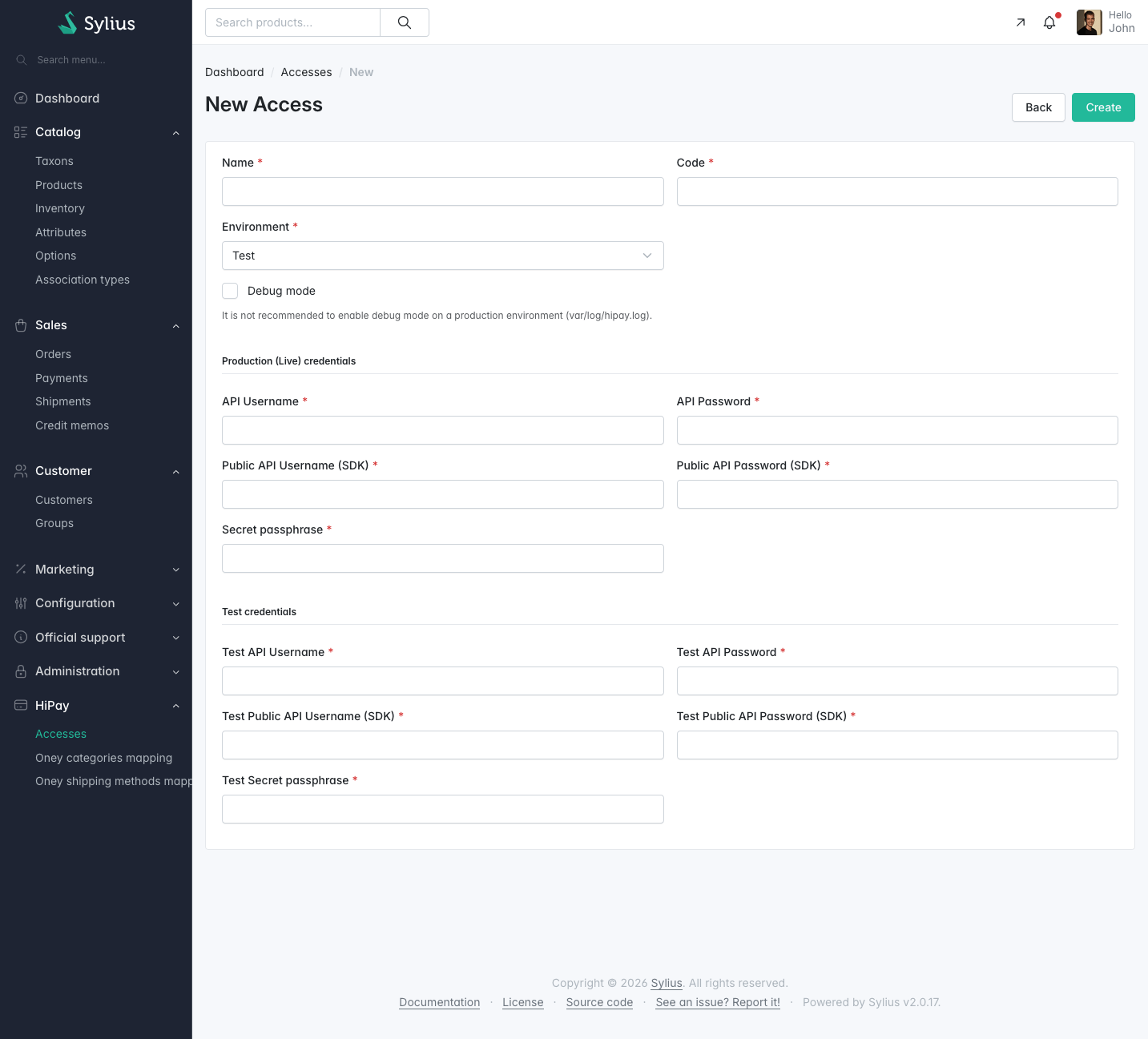
-
- Name: Name of your access
- Code: Internal Sylius code for the access
- Environnement:
- Possible values: Test / Production
- Will define the
- Test: Use to test your integration with HiPay test APIs and test credentials. Do not use this mode in your production environment.
- Production: Use production to manage real transactions on your Production environment
- This setting will determine which credentials and which HiPay API will be used
- Debug Mode:
- When enabled, a log file will be created inside the var/log/hipay.log directory and will log every request
- By default, customer data and sensible data are hidden inside the log file
- This setting is for debugging or developing purpose only, it is highly recommended to disable this setting when using Production mode
- When enabled, a log file will be created inside the var/log/hipay.log directory and will log every request
- Production and test Credentials:
- API Username:
- Username used for payment API calls
- Can be found in your HiPay console
- API Password:
- Password used for payment API calls
- Can be found in your HiPay console
- Public API Username (SDK):
- Username used for HiPay SDK in frontend
- Can be found in your HiPay console
- Public API Password (SDK):
- Password used for HiPay SDK in frontend
- Can be found in your HiPay console
- Secret passphrase:
- Secret Passphrase used to validate the authenticity of HiPay notifications
- Can be found in your HiPay console
- API Username:
- Name: Name of your access
If in doubt about your credentials, please contact HiPay support
2. Payment methods settings
2.1 Add HiPay payment method in Sylius
To add HiPay payment method to Sylius, go to “Configuration > Payment methods”.
Then, click on the “+ Create” button on the top right and select “HiPay Hosted Field” type.
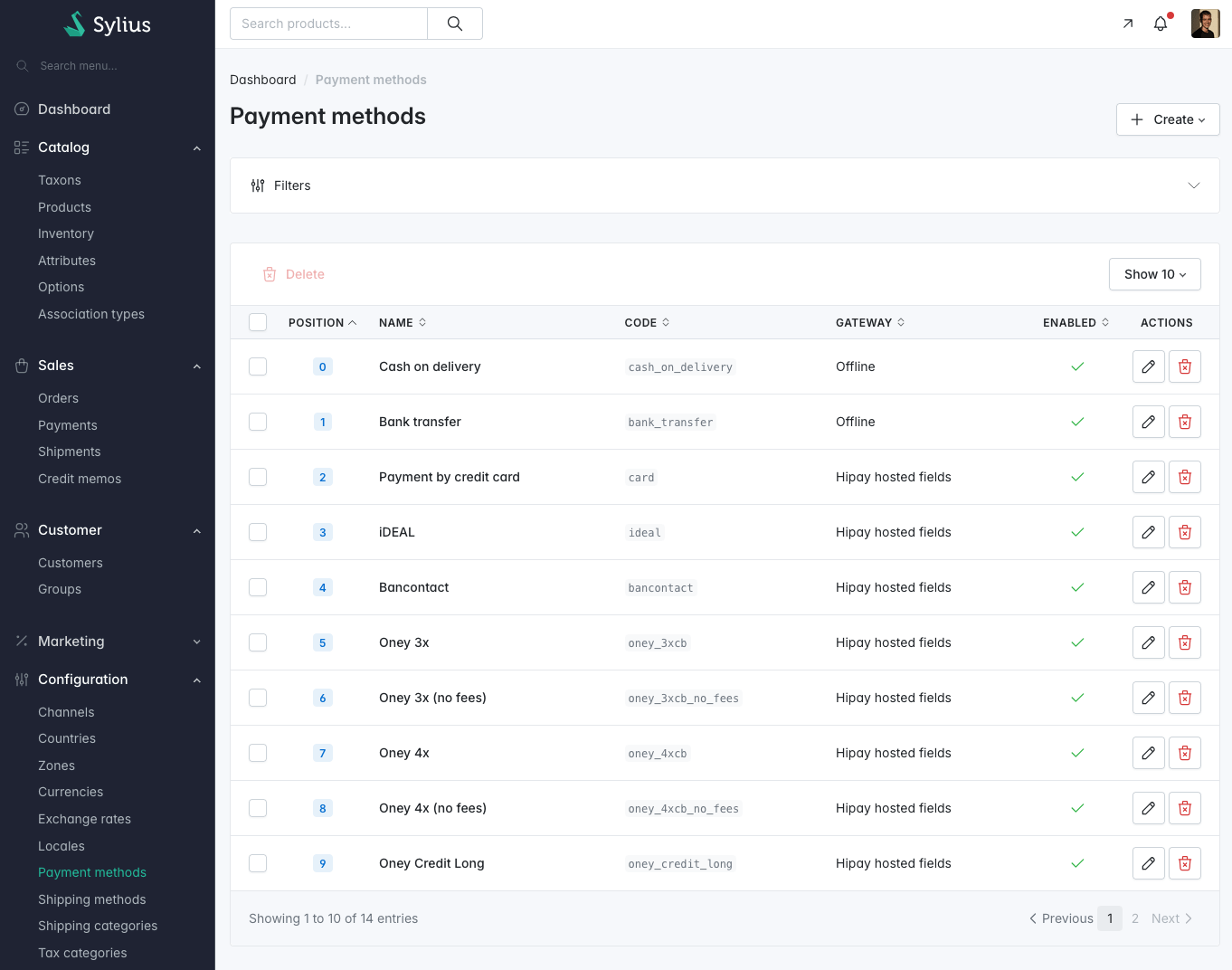
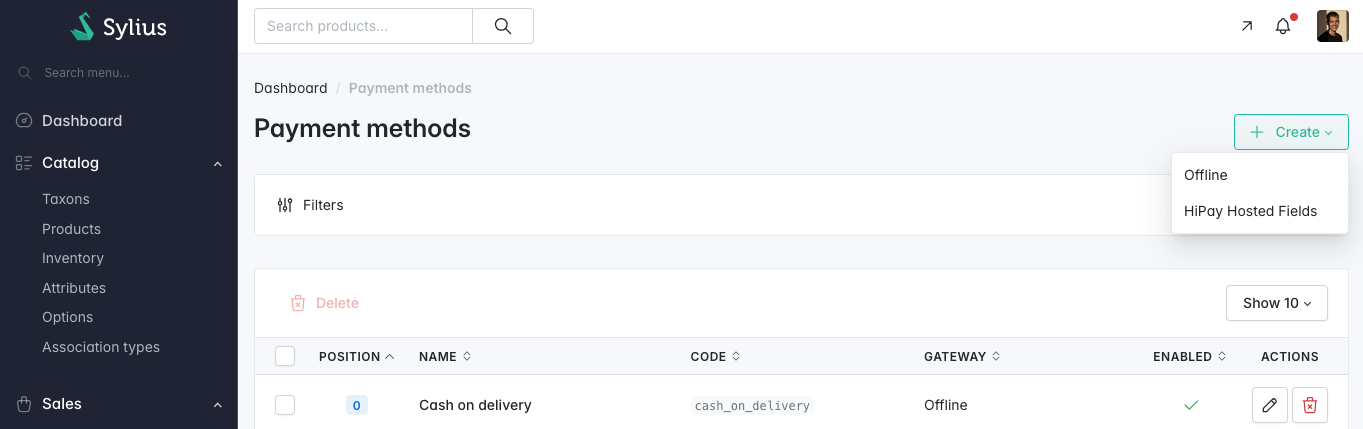
The current Sylius plugin for HiPay implements the Hosted fields logic from HiPay SDK for every payment method: Hosted Fields – Developer | HiPay
2.2 Common settings for payment methods
Sylius native settings:
-
- Code: Internal Sylius payment method code
- Position: Manages the payment method order display in the checkout page on the frontend
- Enabled / Disabled: Manages the payment method activation at a global level
- Channel: Allows you to enable or disable the payment method depending on the Sylius channel
- Name: Name of the payment method
- Description / Instructions: Payment method information displayed on the frontend
Gateway configuration:
-
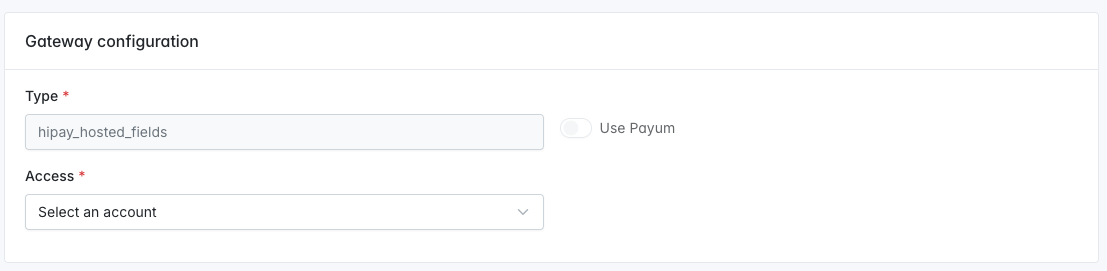
- Type: hipay_hosted_fields (automatic)
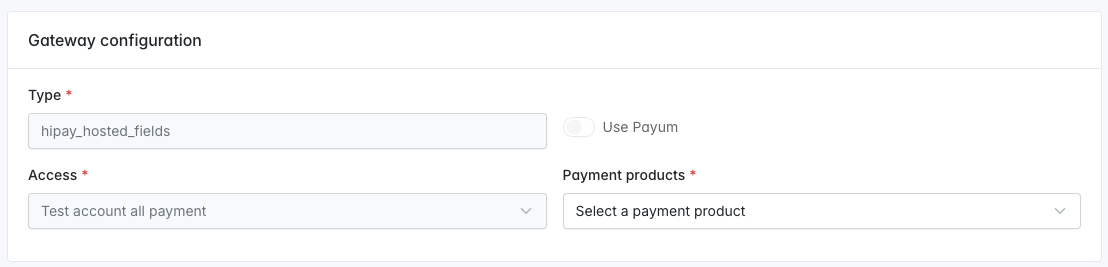
- Access:
- First, choose the HiPay access to apply to this payment method
- Once you have chosen the HiPay credential access, you can select the payment method available on your account
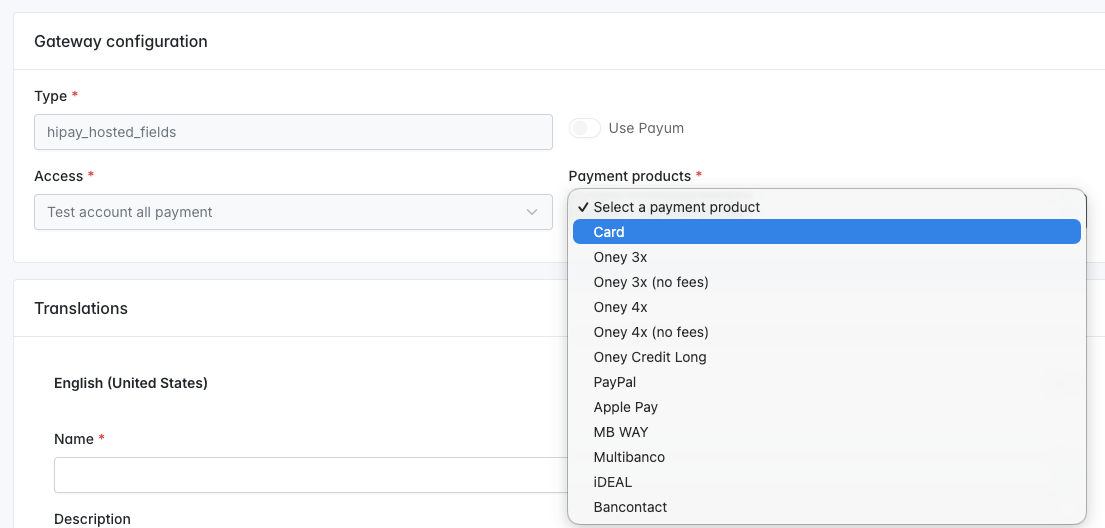
- Payment products:
- Options :
- All the available payment methods in the plugin with a filter on the enabled payment method from your HiPay account
- Select the payment method you want to create
- If a method is greyed, it is not available in your HiPay account. Please contact HiPay support to enable more payment methods
- Options :
2.3 Payment method eligibility
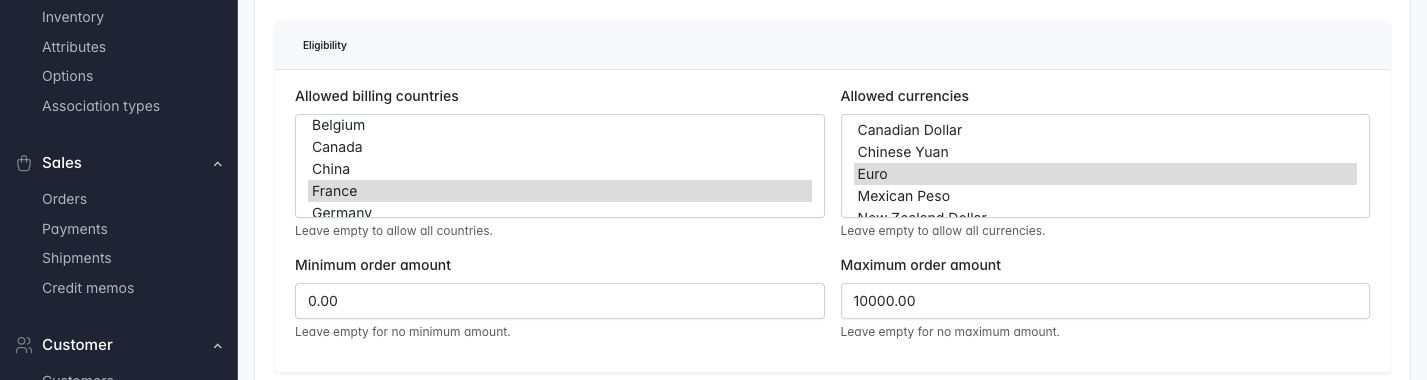
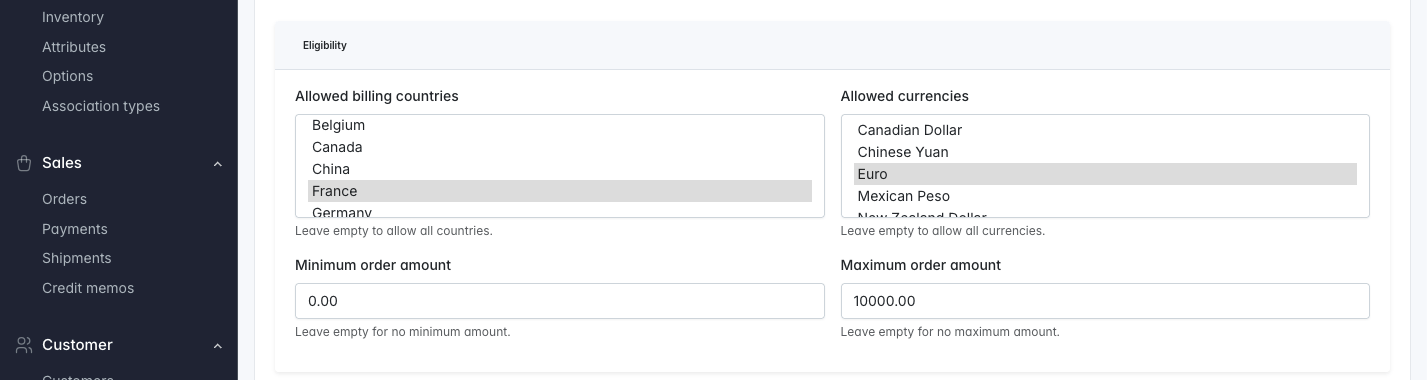
For each payment method, you can configure its availability depending on multiple criteria:
-
- Allowed billing countries:
- The list is restricted to the available countries for each payment method, specifically
- Allowed billing countries:
-
- Allowed currencies:
- The list is restricted to the available currencies for each payment method, specifically
- Allowed currencies:
-
- Minimum order amount:
- The payment method will only be available for orders with a total exceeding the minimum amount
- Set to 0 or empty for no restriction
- Minimum order amount:
-
- Maximum order amount:
-
- The payment method will only be available for orders with a total of less than the maximum amount
- Set to 0 or empty for no restriction
-
- Maximum order amount:
2.4 Card payment and One Click
Payment settings :
At this time, the plugin is only managing direct capture for Card payments.
-
- Card networks: Choose the card networks to enable for Card payments
- Allow One-Click payment and card saving: Set to Yes to enable save card functionality and to enable One Click payment
- 3D Secure:
- Options :
- Enabled (if available): Default value for 3D Secure Challenge
- Forced (mandatory): Will always ask for 3D Secure Challenge
- Disabled: Will not ask for 3D Secure Challenge
- Options :
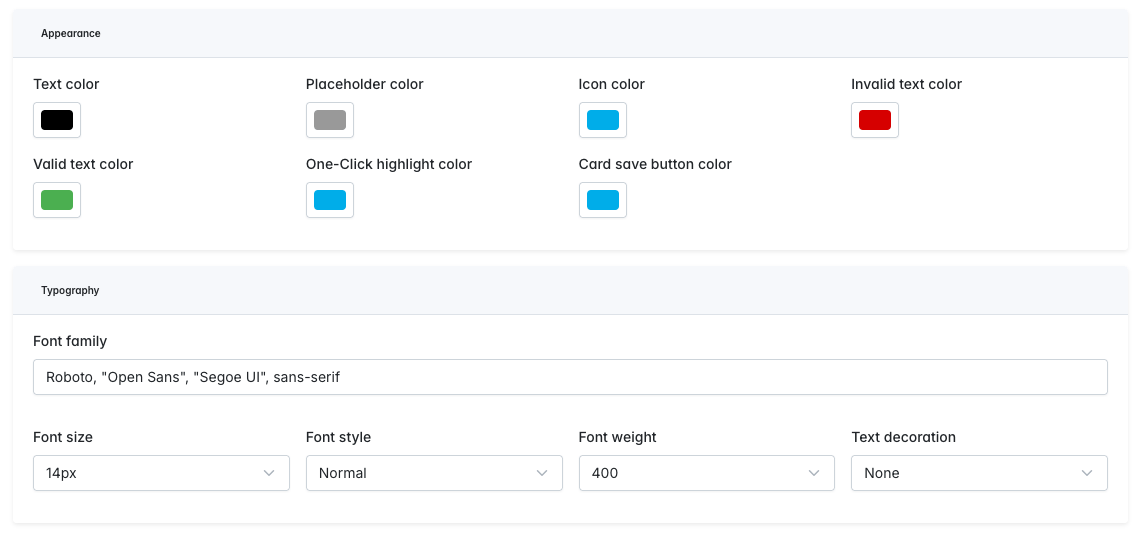
Style and design:
-
- You can customize from Sylius most of the options available in HiPay SDK for the Card payment form:
- SDK Styling reference: JS SDK – Developer | HiPay
- You can customize from Sylius most of the options available in HiPay SDK for the Card payment form:
2.5 Paypal
Payment settings :
-
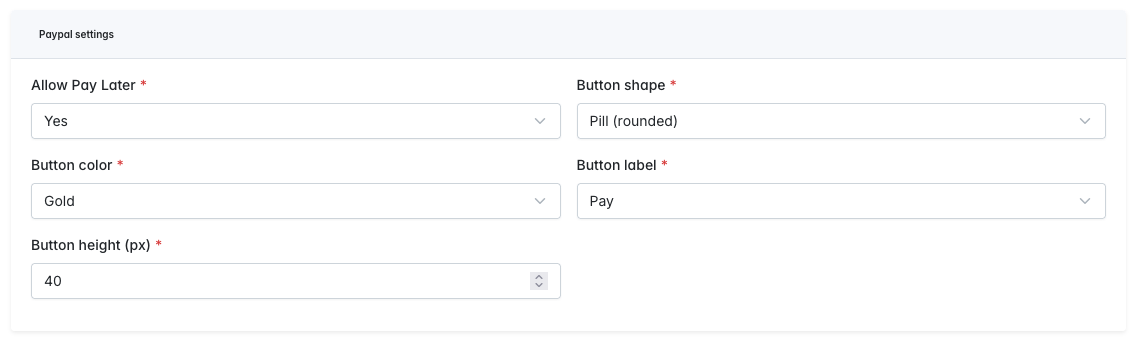
- Allow Pay Later: Display the buy later button and functionality for Paypal
- Button shape: Manage button shape for Paypal (Round or rectangle)
- Button color: Manage button color for Paypal
- Button label: Manage button label for Paypal
- Button height (px): Manage button height for Paypal
2.6 Apple Pay
Payment settings :
-
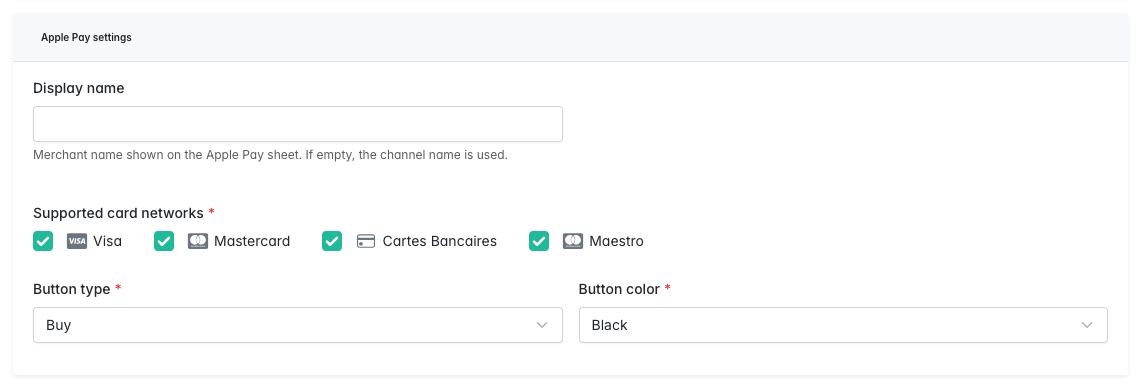
- Display name:
- Store name displayed in Apple Pay pop-up
- If empty, the current channel name will be used (Configuration > Channels > Current channel > Name)
- Supported card networks: Choose the card networks to enable for Apple Pay payments
- Button type: Manage button type for Apple Pay
- Button color: Manage button color for Apple Pay
- Display name:
2.7 Multibanco
Payment settings :
-
- Reference expiration limit: Transaction expiration time (1 hour, 3 hours, 6 hours, 12 hours, same day, 1 day, 3 days, 30 days, 90 days)

The payment reference for Multibanco will be displayed at the end of the order process inside the success page of Sylius.
In addition, a specific email will be sent to the buyer with the same information after the transaction is created.
2.8 MBWay
No specific configurations
2.9 Ideal
No specific configurations
2.10 Bancontact
No specific configurations
3. Notifications
The plugin relies on server-to-server notifications from HiPay in order to handle order management and payment progress: Server-to-server notifications – Developer | HiPay
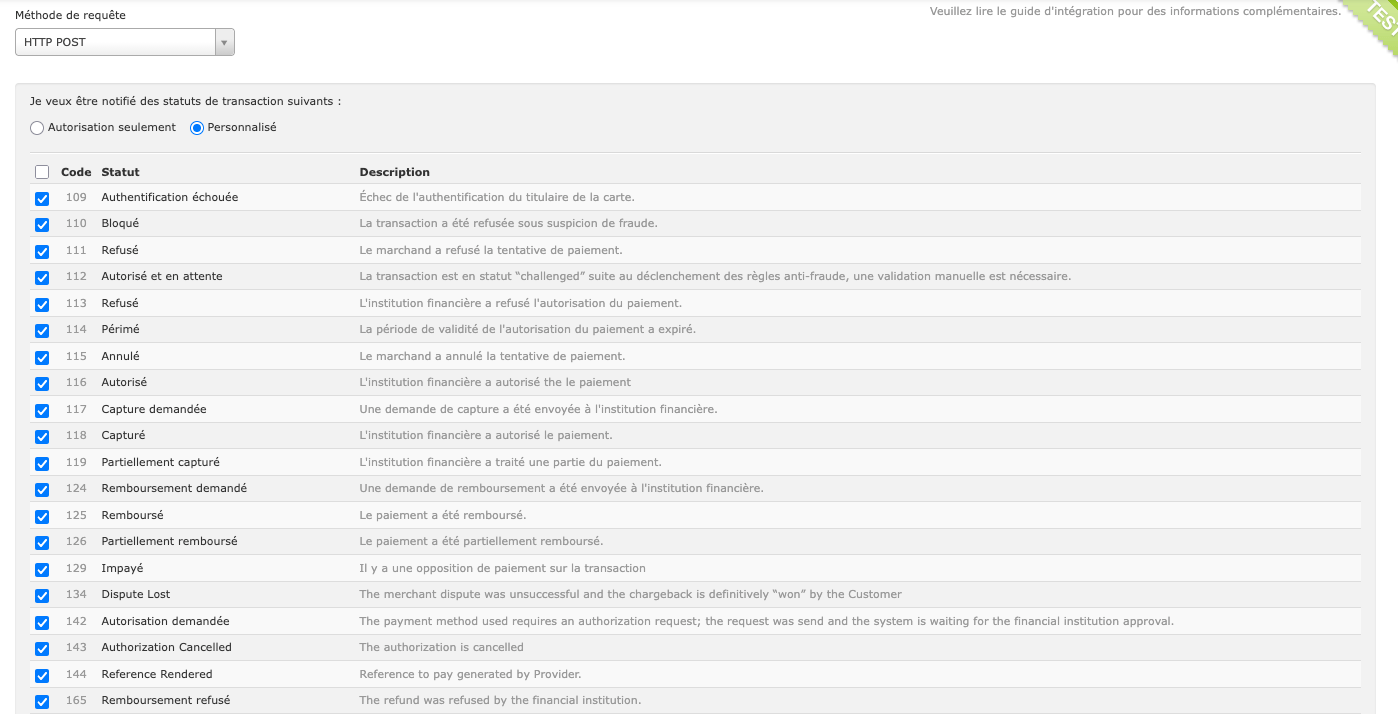
This process is handled by the “payment/hipay/notify” webhook inside the plugin. Make sure to enable all the notifications from your HiPay console and allow IP addresses if necessary:
4. Anti-fraud (Sentinel)
Depending on the rules defined inside your HiPay console, transactions can be flagged as “Challenged”.
When this happens, the order and transaction will be placed in a pending state while it waits for a manual confirmation from the store owner inside their HiPay console:
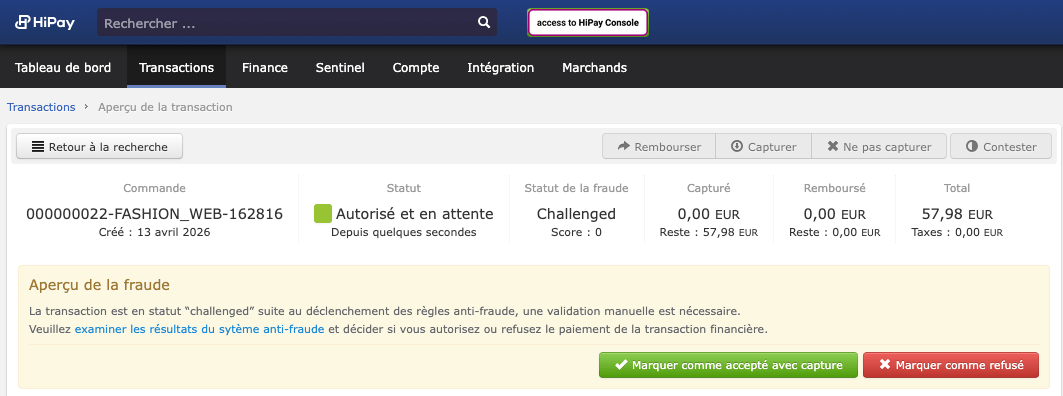
In addition, an email is sent to the store owner to inform them that a transaction is challenged. The email address used for the notification is the order channel contact email in ‘Configuration > Channels > Order Channel > Contact email’.
Accepting a transaction in the HiPay console will unlock the payment and capture the transaction in Sylius.
5. Refunds
Sylius Refund plugin:
As a prerequisite to generate a refund from Sylius, please install the official Sylius Refund Plugin: https://docs.sylius.com/refund-plugin
Generate a refund from Sylius:
-
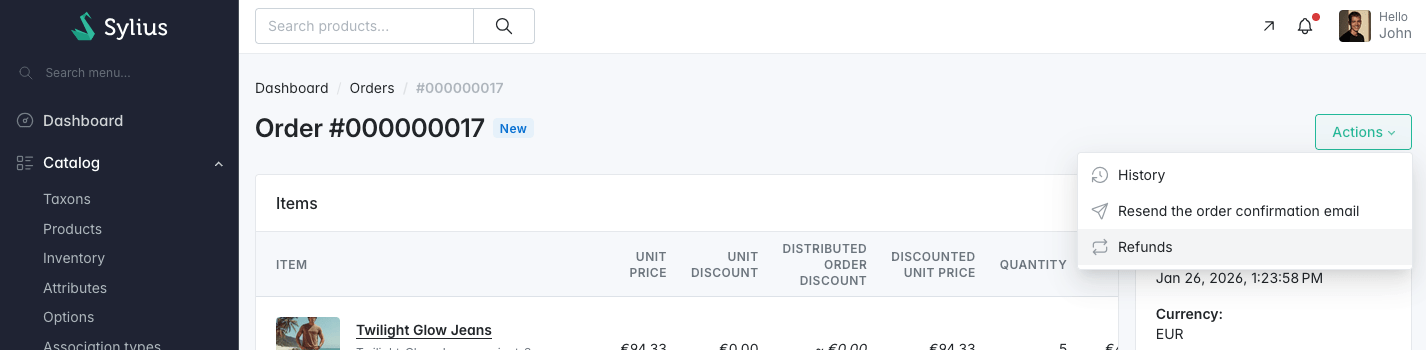
- To refund a HiPay transaction from Sylius, create a new refund with the Sylius refund plugin by clicking on the “Refunds” action.
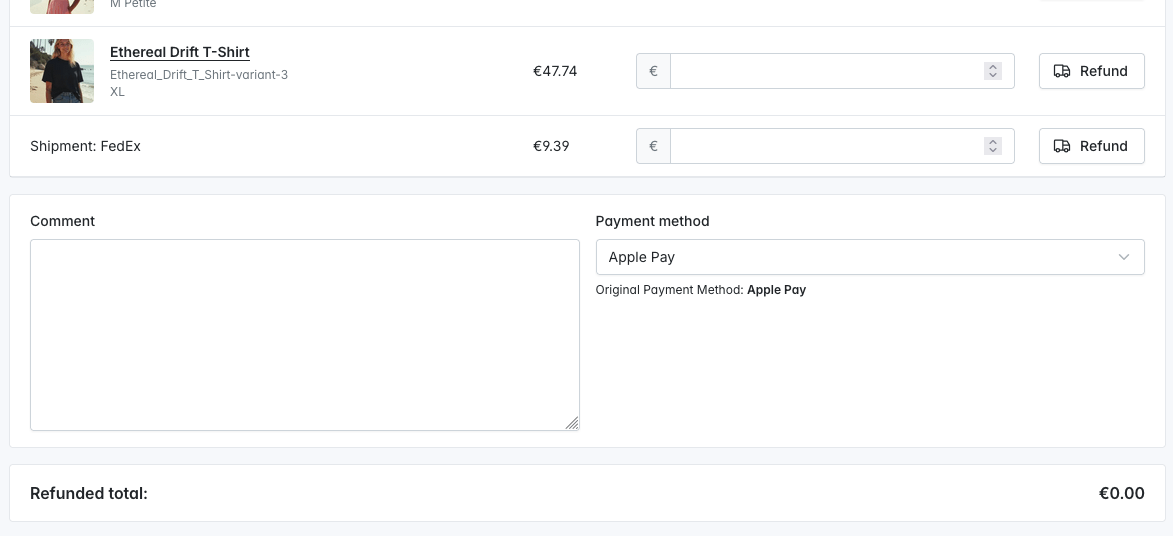
- Choose the products and the amount you wish to refund and select the original payment method
- A refund request will be sent to HiPay, and the payment will be updated with a refund notification following the refund request.
Generate a refund from HiPay:
You can also generate a refund directly from HiPay console to send a refund notification to Sylius. The payment object will be updated accordingly, and the refund will be applied to the corresponding Sylius order.